
Video to GIF Converter
Choose a video to begin.
This video to GIF converter runs in your browser and extracts animation from a short local video. Nothing is uploaded to a server during conversion. Select an MP4, MOV or WebM file, preview the footage, and choose the portion to keep. The GIF output contains moving pictures without audio. No account or generation credits are needed to convert or download it.
What Does a Video to GIF Converter Do?
A video to GIF converter samples pictures from a video clip and encodes them as an animated GIF. The output is useful when a destination accepts animation but does not need a video player or an audio track. This tool accepts MP4, MOV and WebM sources up to 100 MB and 30 seconds long. The complete source file must meet that duration limit, even when you only want a shorter excerpt. Video metadata is checked before the conversion engine is loaded. If the source is too long, trim it outside this tool first and then select the shorter file. Accepted file extensions are containers, so their internal video codec still needs to be readable in the browser workflow. A file that cannot be decoded produces an error instead of a completed download. The original video stays on your device and is not overwritten by the new GIF.
How Do I Choose the Part of a Video to Turn into a GIF?
Video selection starts with finding a short action that remains understandable without sound. After choosing a supported file, use the video preview to locate that action, then set Start and Duration in seconds. Start chooses where the excerpt begins; Duration chooses how much footage follows it. The default excerpt is up to 5 seconds, depending on the length of the source. The start position slider and its numeric field work together. When a valid selection runs past the end of the clip, the duration is shortened and an inline message explains the change. Select a narrower moment if the first attempt contains unnecessary waiting or an abrupt transition. After conversion, inspect the boundary where the GIF returns to its beginning. A clip can loop continuously without having a visually seamless ending, so the choice of source moment still matters. Download the result only after checking the preview.
- Step 1
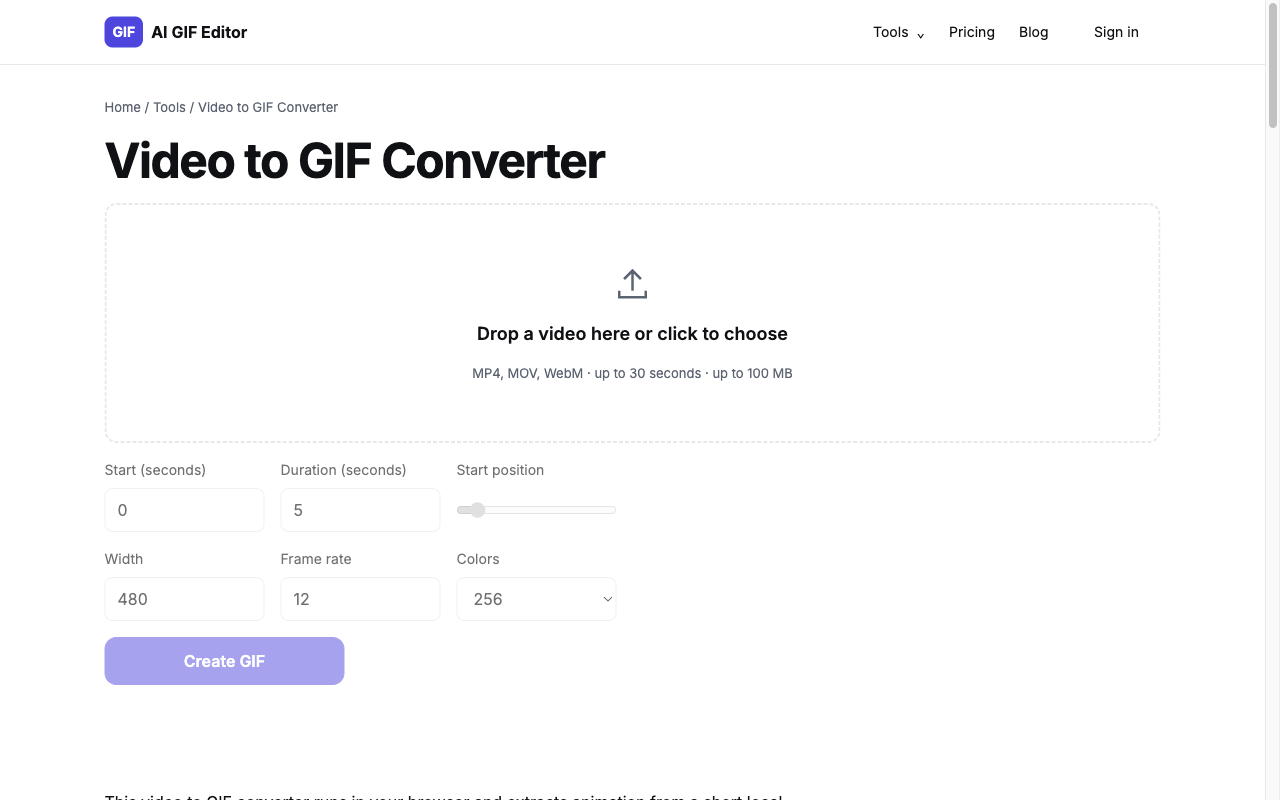
Select a supported video that is already within 30 seconds and 100 MB. Wait for the local metadata check and confirm that the preview is readable.
- Step 2
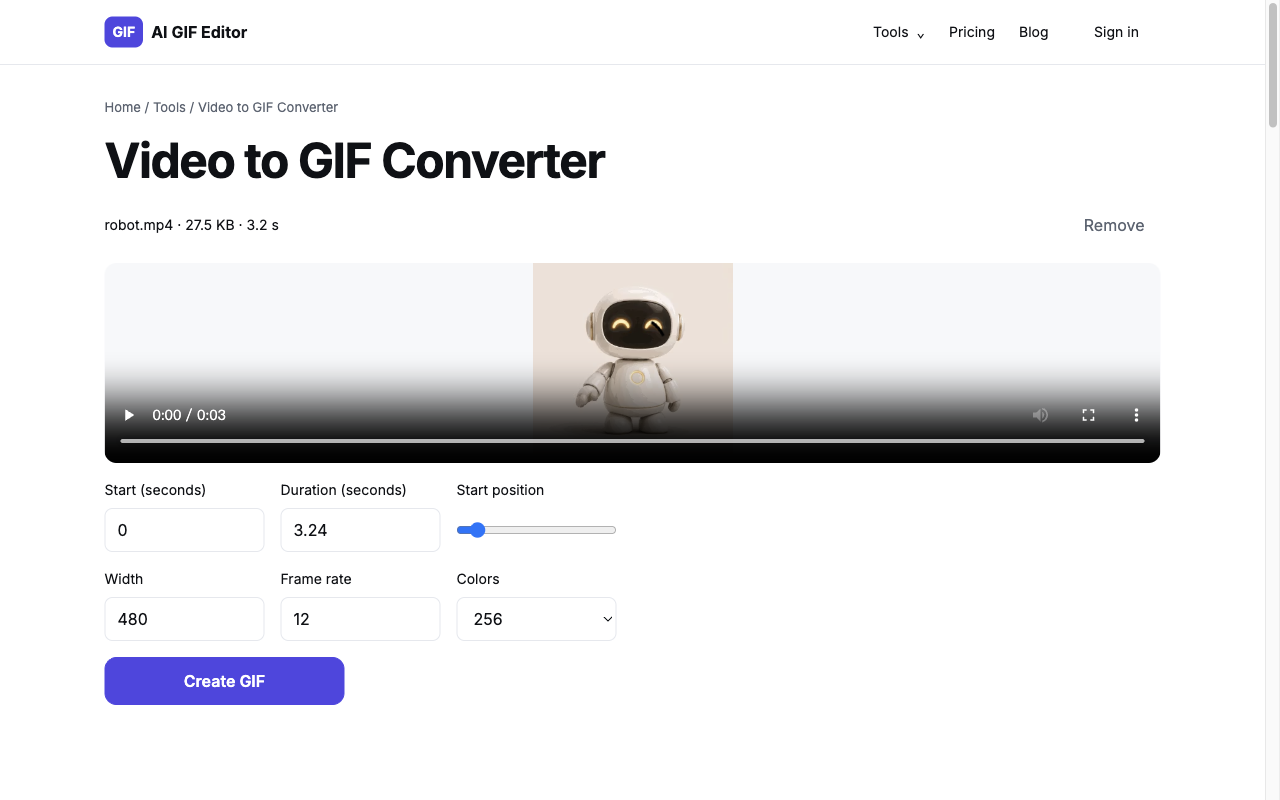
Set the excerpt’s start and duration, then choose its width, frame rate and colors. Check any message about trimming the selection to the clip’s end.
- Step 3
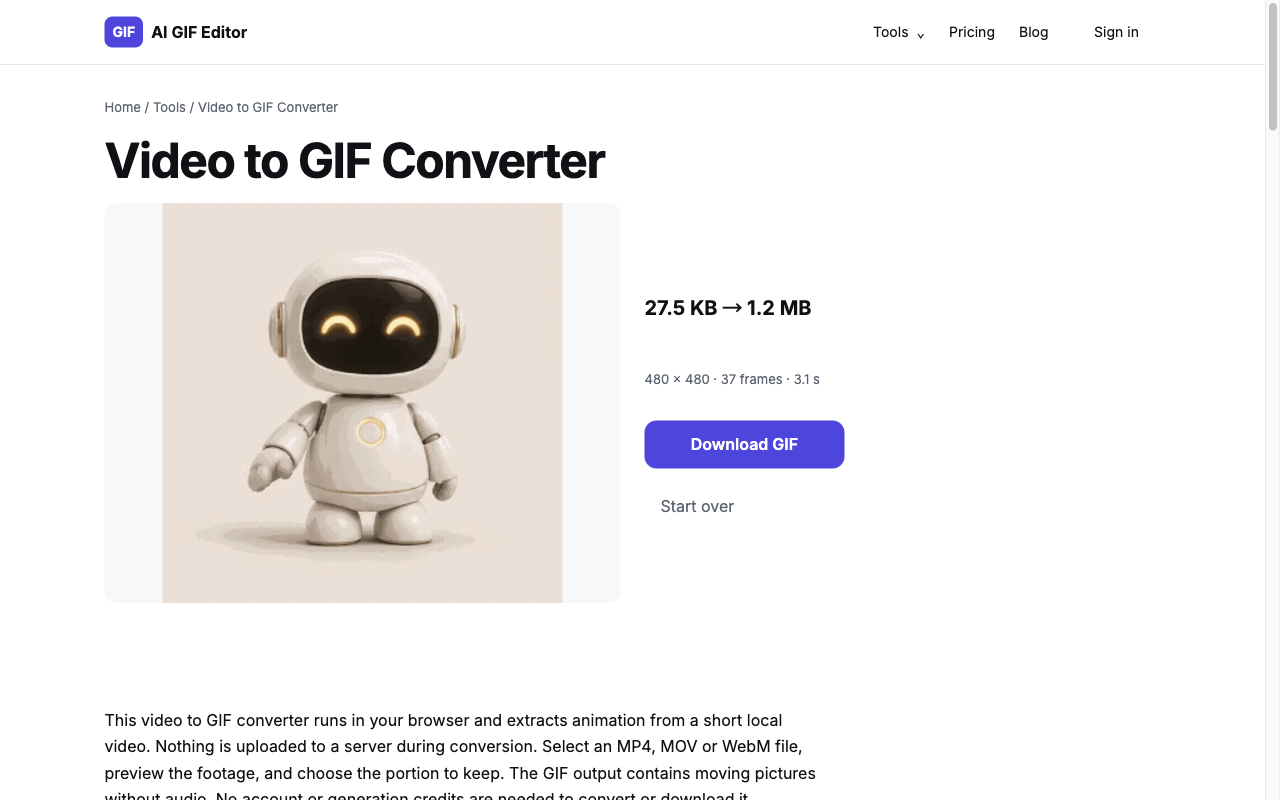
Choose Create GIF and wait for the result. Review the motion and file size, then download. Cancel ends the local conversion if you want to start again.
Which Settings Affect GIF Size and Playback?
Video to GIF settings determine how much visual information survives the conversion. Width controls the requested output dimensions while preserving the clip’s proportions; both output sides must stay within 1024 pixels. Frame rate controls the number of pictures sampled per second, with 12 FPS selected initially and a supported range of 1 to 30. Colors chooses a palette of 256, 128 or 64 entries. Fewer colors can reduce detail in gradients or textured footage, while fewer frames can make motion less continuous. Larger dimensions and longer excerpts can create larger files, so change settings with the intended destination in mind. The browser loads its video conversion engine when you start a task, which can involve an initial resource download. Conversion then works locally, with a 60-second processing limit and a Cancel control. An uncertain progress display does not promise a completion percentage; the downloadable result appears only after conversion succeeds.
What Can You Adjust with Video to GIF Converter?
- MP4, MOV and WebM source selection.
- Native preview before the conversion engine loads.
- Start position and duration controls for excerpts.
- Width, frame rate and color palette settings.
- Local conversion with an explicit cancel control.
- Animated GIF output without an audio track.
When Is Video to GIF Converter Useful?
Short interface demonstrations
Extract one visible interaction from a screen recording, such as opening a menu or changing a setting. Keep the relevant area large enough to read after resizing. A GIF is a poor substitute for a long tutorial, so focus each animation on a single action.
Silent reaction loops
Choose a brief expression or movement that makes sense without dialogue. Check both ends of the excerpt before exporting, because an accidental pause can dominate a short loop. The converter removes the audio path; any meaning that depends on sound needs another presentation format.
Motion details for a product
Show a specific product action, such as a hinge opening or a light changing, using footage you already own. A short excerpt lets the motion repeat without requiring the entire recording. Compare the downloaded size with the receiving site’s current upload limit before using it there.
Frequently Asked Questions
What video formats work?
Supported video containers are MP4, MOV and WebM. A matching extension alone does not guarantee that the file’s internal codec can be decoded in the browser workflow. If metadata or conversion fails, try exporting the source with a different compatible codec before selecting the new file here.
How long can the clip be?
The source clip can be up to 30 seconds long. This limit applies to the whole selected video, not only the excerpt you plan to convert. A longer source is rejected before ffmpeg loads. Trim longer footage elsewhere first, then select the shorter local file through the picker.
Can I choose the start and end time?
The start and end of an excerpt are controlled through Start and Duration. Enter the beginning in seconds, then choose how long the GIF should run. If that selection passes the clip’s end, the duration is shortened automatically and the interface displays a message describing the adjustment.
Why does my GIF look blurry?
GIF blur or coarse detail can come from a small output width, a limited color palette or a low-detail source video. Increasing width cannot recover detail missing from the source. Compare different palette and width settings, and remember that GIF’s color representation differs from the original video.
Is there a file size limit?
The source file size limit is 100 MB, and the source duration limit is 30 seconds. Passing those checks does not guarantee completion on every device: conversion also depends on browser resources and must finish within the processing time limit. A shorter excerpt or smaller output can require less work.