
Image to GIF Converter
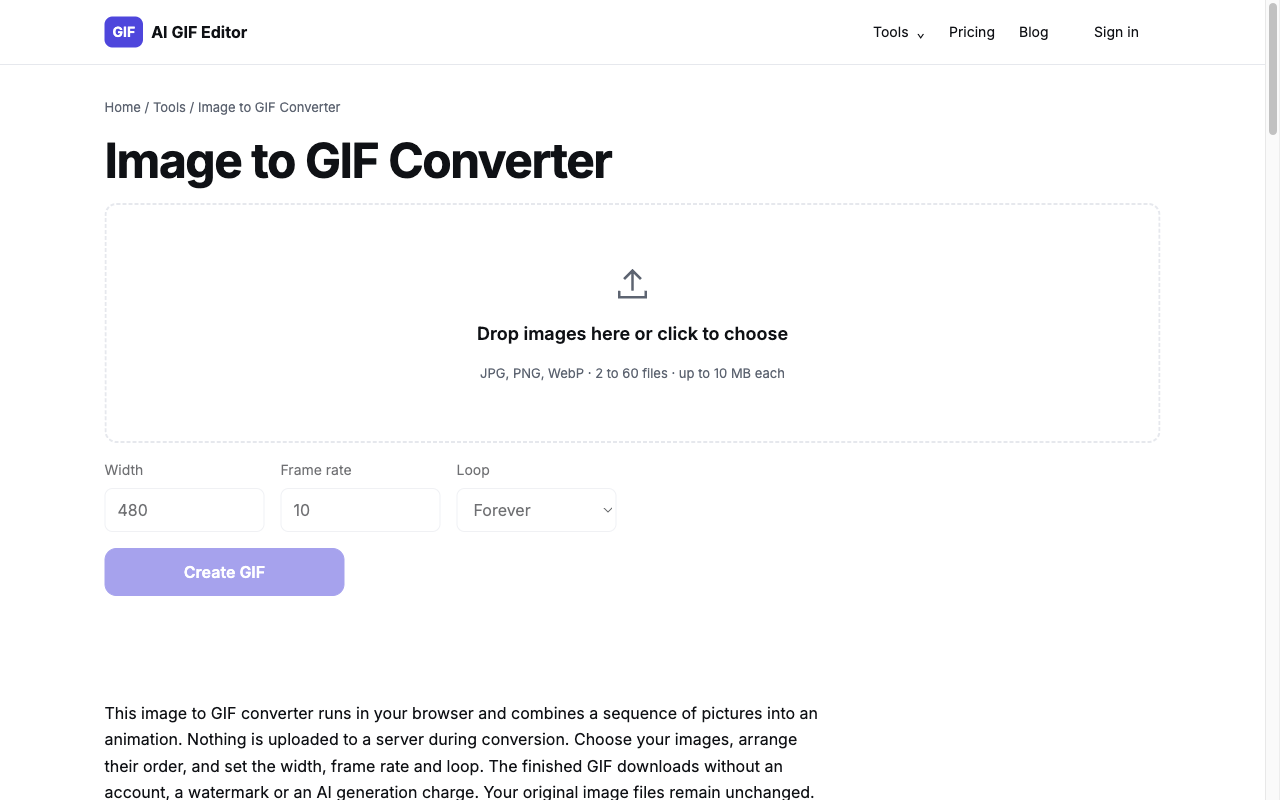
Choose at least 2 images to begin.
This image to GIF converter runs in your browser and combines a sequence of pictures into an animation. Nothing is uploaded to a server during conversion. Choose your images, arrange their order, and set the width, frame rate and loop. The finished GIF downloads without an account, a watermark or an AI generation charge. Your original image files remain unchanged.
What Is an Image to GIF Converter?
An image to GIF converter assembles separate pictures into the frames of an animated file. Each picture appears for a short interval before the next picture replaces it, creating a slideshow, a demonstration or the impression of movement. This converter accepts 2 to 60 JPG, PNG or WebP files and creates standard GIF output. Every source image must be no larger than 10 MB and no wider or taller than 1024 pixels. Those limits apply to the selected files before conversion begins. The browser reads each picture locally, fits it inside a consistent canvas, and encodes the sequence after you choose Create GIF. Images with different proportions may therefore leave space around the shorter side. Preparing similarly sized source pictures gives you more predictable framing. Keep the original pictures if you want to make a different sequence later; downloading the animation does not replace them.
How Do I Turn Several Images into One GIF?
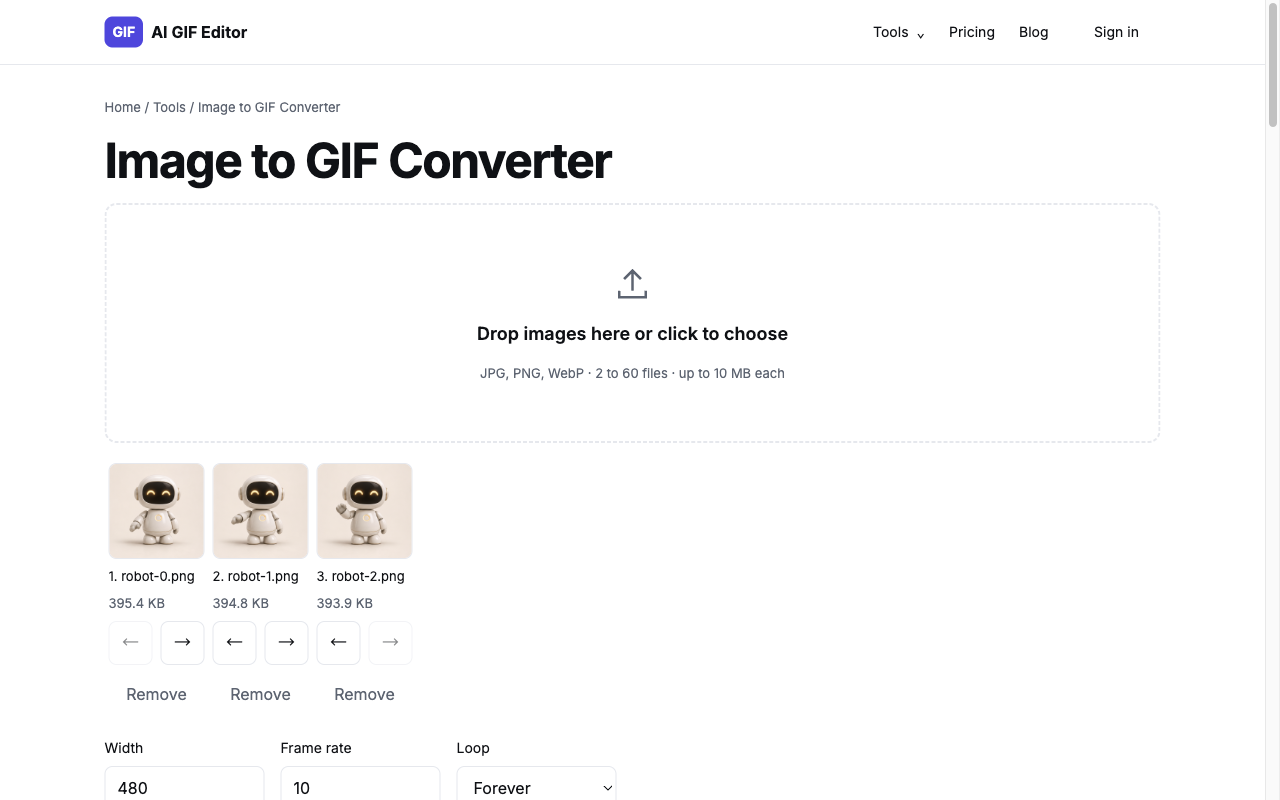
Image to GIF conversion begins with selecting the pictures that belong in the sequence. Use the file picker, drag images into the input area, or paste supported images when a text field is not focused. The selected files appear as numbered thumbnails so you can check the order before encoding. Move a frame earlier or later with its arrow buttons, and remove a picture if it interrupts the sequence. At least 2 images must remain before Create GIF becomes available. Set the width and frame rate, choose the loop behavior, and start the conversion. A progress indicator reports completed encoding work, and Cancel stops the local task. Once the result appears, review the animated preview before downloading aigifeditor.gif. Start over releases the current result and clears the selected files. There is no sign-in step between choosing pictures and saving the finished animation to your device.
- Step 1
Choose at least two supported images. Check that each file is within 10 MB and 1024 pixels on both sides before adding the sequence.
- Step 2
Use the thumbnail controls to arrange the pictures. Set a width, a frame rate and either Forever or Play once for the intended viewing context.
- Step 3
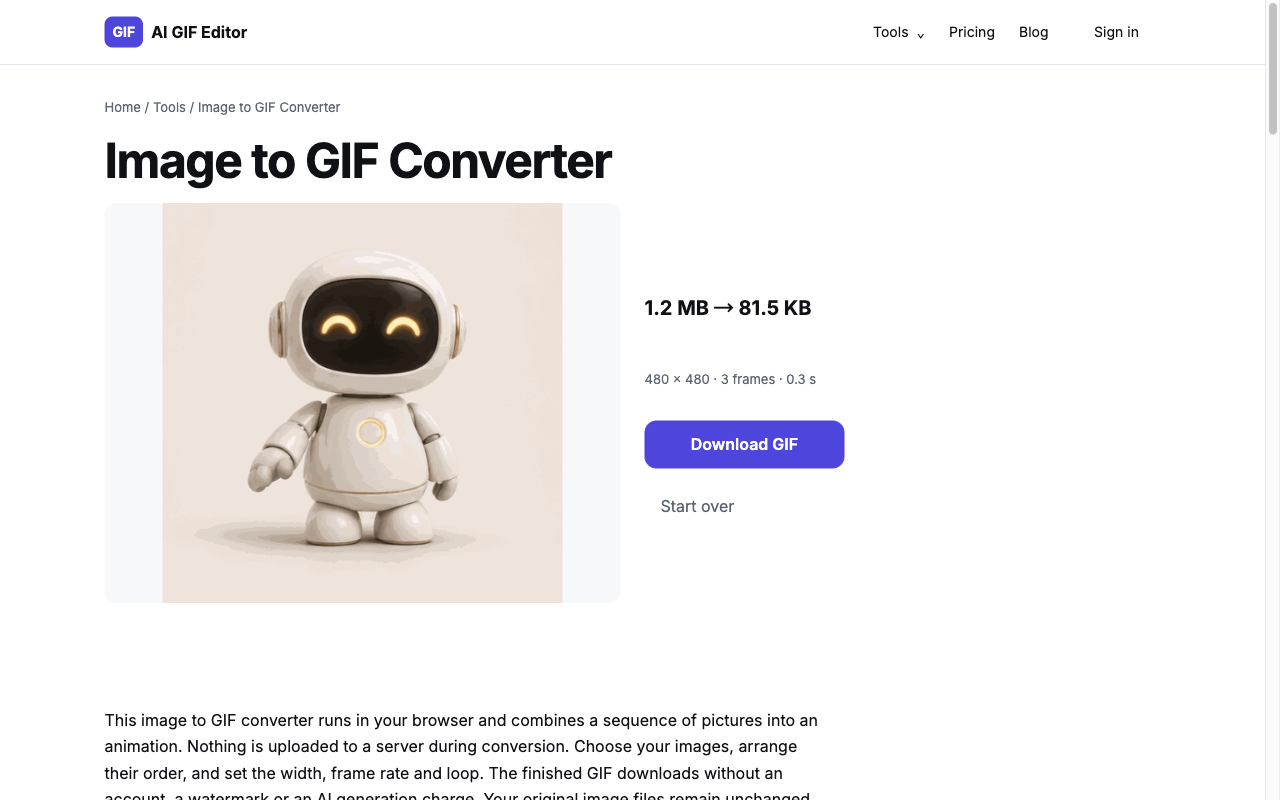
Select Create GIF, inspect the animated result, and choose Download GIF. Keep the source pictures separately if you may want another arrangement later.
How Do Width, Frame Rate and Loop Change the Animation?
GIF width, frame rate and loop behavior control different parts of the result. Width determines the requested horizontal output size, with a range of 120 to 1024 pixels. The canvas keeps the first image’s proportions, and its height must also fit the supported dimension limit. Frame rate controls how quickly the pictures advance: a higher value shows the same sequence in less time, while a lower value lets each picture remain visible longer. The default is 10 frames per second, and the available range is 1 to 30. GIF stores timing in small discrete intervals, so playback can involve rounding. Loop selects continuous repetition or a single playthrough; the destination application may still apply its own display behavior. Try changing one setting at a time so you can compare its effect. Extra frames, larger dimensions and more detailed pictures can all increase the resulting file size.
What Can You Adjust with Image to GIF Converter?
- JPG, PNG and WebP input in a single sequence.
- Two to sixty source images per conversion.
- Keyboard-accessible frame movement and removal controls.
- Adjustable width and a 1–30 FPS range.
- Forever or Play once loop settings.
- Local processing and an ungated GIF download.
When Is Image to GIF Converter Useful?
Product angle sequences
Arrange several product photographs in a consistent order to show different sides of an item. Similar framing and backgrounds help the viewer follow the subject as the images change. A modest frame rate gives each angle time to register without requiring a long sequence.
Illustrated instructions
Combine a few screenshots or drawings to explain a short operation. Put the first action first and remove intermediate pictures that do not clarify the process. Slower playback can make each step easier to inspect, especially when the pictures contain labels or interface details.
Drawn animation and reactions
Turn a small set of drawings or expression changes into a looping reaction. Check the transition from the last picture back to the first before sharing. This workflow uses images you supply; it does not invent missing drawings or generate new motion between the frames.
Frequently Asked Questions
How many images can I combine?
Image sequences can contain between 2 and 60 pictures. A single picture is not enough for this converter, and a selection above the limit is rejected before encoding. Remove unwanted frames from the thumbnail list, then arrange the remaining pictures in the order you want them to appear.
What formats are supported?
Supported image formats are JPG, PNG and WebP. Each file must be within 10 MB and 1024 pixels on either side. HEIC, SVG and other unlisted formats are not accepted here. Convert an unsupported image to a supported format before selecting it; changing its filename extension is not a conversion.
Can I change the order of frames?
Frame order can be changed before you create the GIF. Use the earlier and later buttons beside the selected thumbnails to move a picture through the sequence. You can also remove individual pictures. These actions change the conversion input list and leave the original files on your device intact.
How do I set the GIF speed?
GIF speed is controlled by the Frame rate field, which accepts 1 to 30 frames per second. A higher rate plays the same pictures more quickly; a lower rate holds each picture longer. Preview the result before downloading, because GIF timing precision and the receiving application can affect playback.
Does the GIF loop forever?
GIF looping can be set to Forever or Play once before conversion. Forever is the default and stores continuous repetition in the output file. Play once requests a single pass through the sequence. Check the downloaded GIF in its intended destination, since some applications override a file’s playback setting.