
GIF Compressor
Choose one GIF to compress.
Compression reduces frames and colors while preserving playback duration. If the result is larger, the original GIF is kept.
This GIF compressor runs in your browser and reduces animation data through frame sampling and color reduction. Nothing is uploaded to a server during compression. Choose one GIF, select a preset, and compare the resulting file size. Local compression is free and does not require an account. If re-encoding cannot make the file smaller, the original GIF remains the downloadable result.
How Does a GIF Compressor Reduce File Size?
A GIF compressor reduces the information needed to store an animation. This compressor combines frame sampling with palette reduction, so its presets can change visual detail rather than promising a lossless transformation. It accepts one GIF at a time, up to 20 MB, with dimensions no greater than 1024 pixels on either side. The browser decodes the animation into complete frames before producing another GIF. A file with small compressed bytes can still expand into a large amount of pixel data, so an explicit memory budget protects the processing step. Files that exceed that budget receive an error; they are not silently shortened. Compression does not use the editor’s separate 60-frame limit, and longer small animations can be processed when they fit the resource budget. The result includes a size comparison so you can evaluate the actual change before deciding whether the output suits your purpose.
What Is the Difference Between Light, Balanced and Strong Compression?
GIF compression presets trade retained detail for a chance of reducing the download size. Light keeps approximately 80 percent of the source frames and uses up to 256 colors. Balanced keeps approximately 60 percent and uses up to 128 colors. Strong keeps approximately 40 percent and uses up to 64 colors. Frame counts are rounded, and the first and last frames are retained, so the exact outcome depends on the animation. Removing frames reduces the number of visible moments, but the time assigned to omitted frames is added to retained frames. That preserves the original total playback duration instead of simply speeding up the action. Palette reduction can change gradients, shading and fine texture. Start with a lighter preset when those details matter, then compare the preview with a stronger result if file size is still too large. No preset guarantees a particular percentage saving for every input.
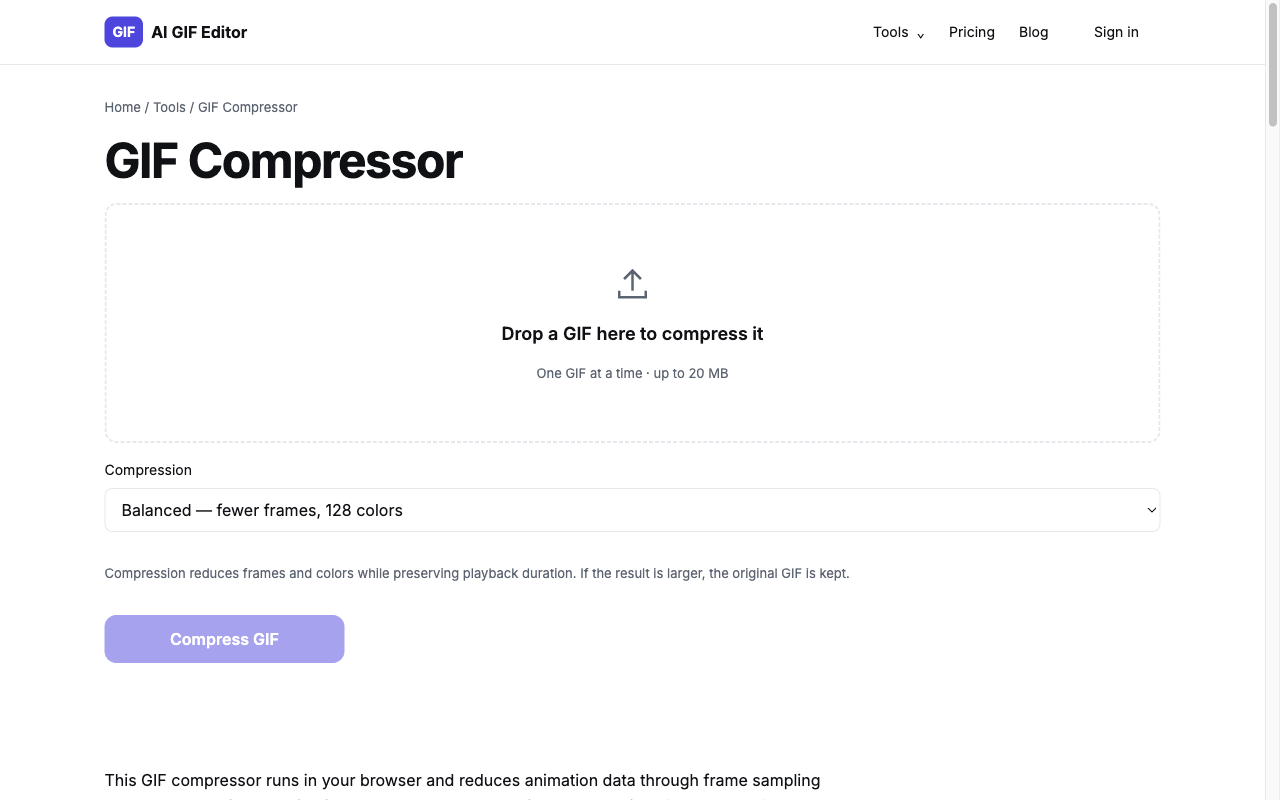
- Step 1
Choose one GIF within 20 MB and the supported dimensions. The file header is checked before it is accepted, and decoding applies a separate memory budget.
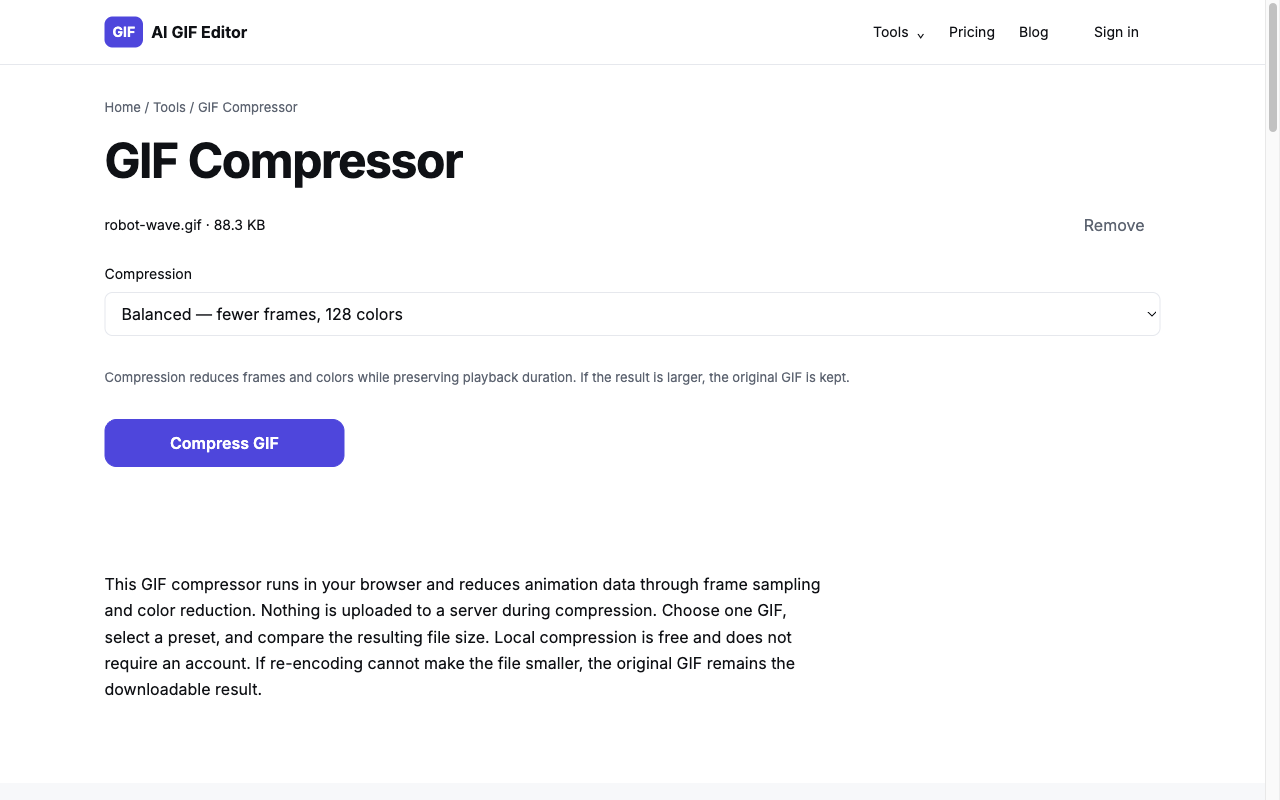
- Step 2
Select Light, Balanced or Strong. Use a lighter setting when color detail and motion matter, then compare the actual preview before trying a stronger preset.
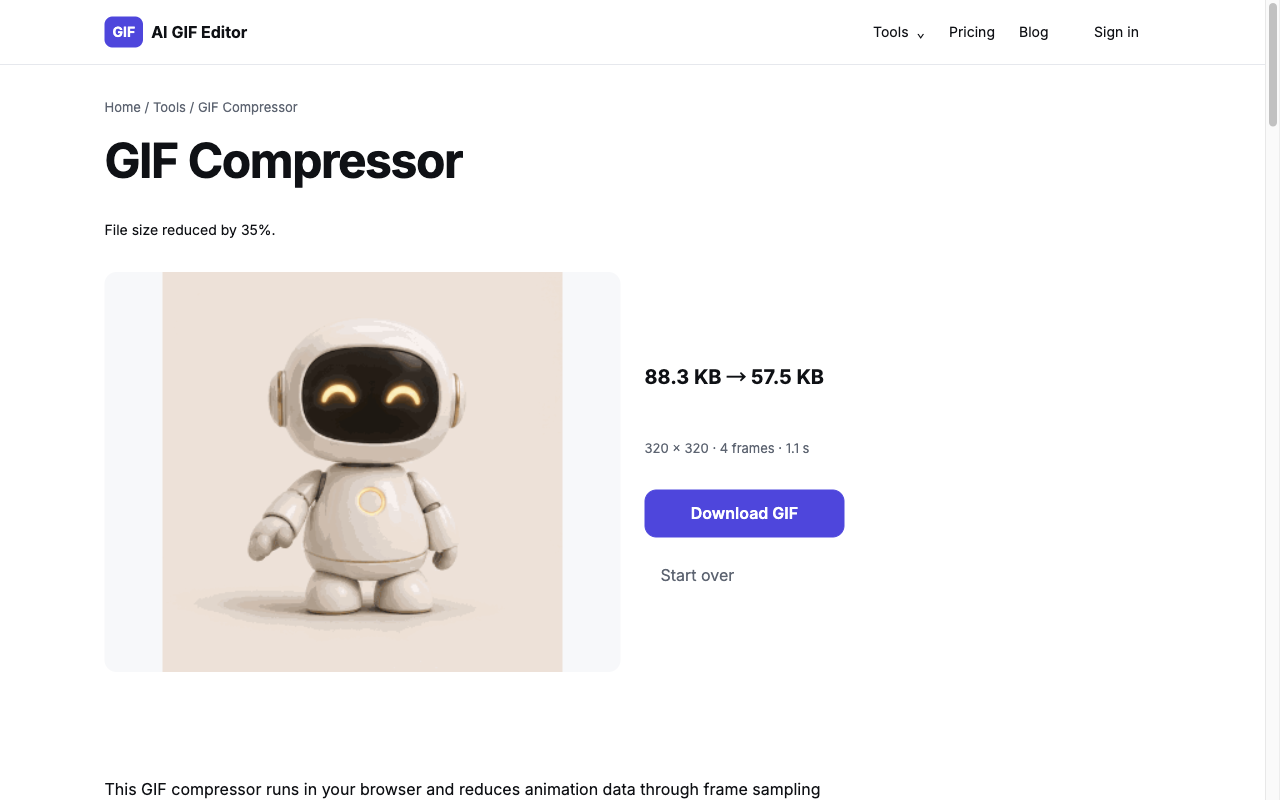
- Step 3
Choose Compress GIF, review the size comparison, and download. If the attempt cannot reduce the bytes, the result explains that the original file has been kept.
What Happens if the Compressed GIF Is Not Smaller?
GIF compression does not always produce a smaller file, even when a preset keeps fewer frames or colors. The original encoder may already have stored an animation efficiently, or a new arrangement of frames may require more data. This tool compares the completed output against the original byte size before returning a download. If the new GIF is equal in size or larger, it returns the original file and displays that the GIF is already optimized. That message describes the outcome of the chosen attempt; it is not proof that no other editing approach could reduce the file. Try another preset if you want a different tradeoff, or shorten and resize a suitable animation with an editor. The existing GIF editor here accepts up to 60 frames, which remains a separate limit. Always inspect the actual output and its destination requirements instead of relying on an estimated compression percentage.
What Can You Adjust with GIF Compressor?
- Three presets for frame and palette reduction.
- First and last source frames are retained.
- Total animation playback duration is preserved.
- GIF transparency and loop behavior are carried through.
- Original-file fallback when re-encoding is not smaller.
- One local GIF per task, without an account.
When Is GIF Compressor Useful?
Preparing an animation for an upload limit
Compare the original size with the limit imposed by the destination where you plan to share it. A stronger preset may help, but the compressor does not offer a target-byte guarantee. If the result remains too large, changing the source dimensions or content may be necessary.
Reducing repeated downloads
A smaller animation can reduce the bytes transferred each time that file is downloaded elsewhere. Evaluate the actual saved size before replacing an existing asset. A very small saving may not justify a visible loss of motion detail, particularly for instructions or diagrams that need careful inspection.
Comparing delivery copies
Keep the original animation and make a compressed copy for a particular use. Compare text readability, transparency and motion in the intended destination. The downloaded file does not overwrite the original on your device, so you can retain separate versions for contexts with different size requirements.
Frequently Asked Questions
How much smaller will my GIF get?
GIF size reduction depends on the source frames, palette and existing encoding. The tool reports the actual change after compression rather than promising a fixed percentage. If the chosen preset produces an equal or larger file, the original GIF is returned with an explanation instead of a larger replacement.
Does compressing hurt quality?
Compression can change visual quality because these presets remove frames and may reduce colors. Motion can become less continuous, and gradients or fine texture can lose detail. Total playback duration is preserved, but that does not mean every original visual moment remains. Compare the preview before using the result.
Can I keep transparency?
GIF transparency is preserved during decoding and re-encoding, including transparent parts of individual frames. GIF uses a transparent palette entry rather than the gradual alpha transparency available in some image formats. Inspect the compressed result against the background where you plan to display it, particularly around moving edges.
What is the largest GIF I can compress?
The largest accepted GIF file is 20 MB, with width and height each no greater than 1024 pixels. Decoded frame memory is also limited, so a densely packed animation can exceed the processing budget despite a smaller file size. The compressor reports that problem instead of discarding frames without notice.
Can I compress several GIFs at once?
GIF compression processes one file per task. Select a GIF, choose a preset, and download or inspect its result before starting over with another file. There is no batch queue in this interface. Individual tasks let you compare each animation’s size and appearance with the settings that suit it.